
In This Section
- Home
- About
- Support
- DMIS – User Manual - 2019
- DMIS – How to View DSS Information
- DMIS - Virtual App
- Support & Login
- Getting Started
- Overview
- Maintain Department Preferences
- Setting up Module Structure
- Module Structure – Mark X Weight
- Virtual App DMIS Mark Entering/Import
- Entering Placement Judgements
- Recording Student Absences
- Recording Students who FAIL a SPECIAL REQUIREMENT
- Break code on a module
- Upload Module Marks to ITS
- Virtual App Report Download
- Common Support Queries
- Support & Login
- ITS
- Reporting Services
- DMIS Login on Virtual App
- Student Headcount Summary
- Contact
- ITS Upgrade v4.1 - Feb 2023
- Reporting Services
Import TEXT File – Discoverer Report Templates
- The Import Marks Screen in DMIS points users towards to location for generating Import Mark File Templates.
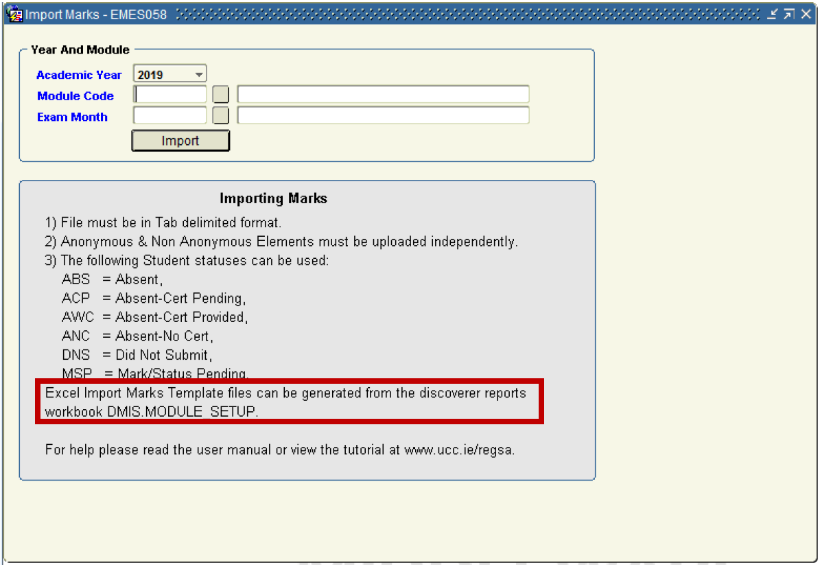
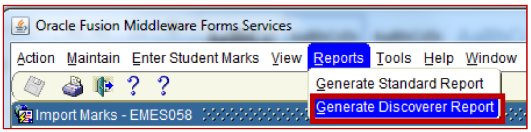
- To access the DMIS Discoverer Reports, select the option – Reports – Generate Discoverer Report.
- Selecting the Generate Discoverer Report menu option will produce a New Internet Explorer Browser Tab Window which is entitled – Enter connection details.
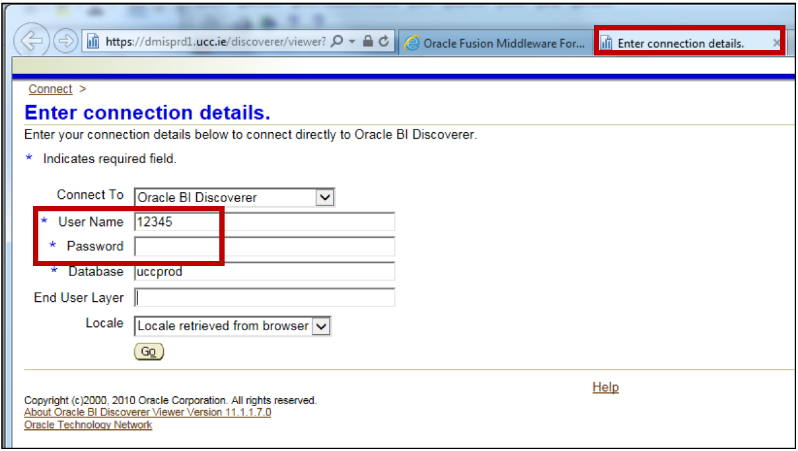
- Your DMIS User Id will be automatically populated for you. Your password is your DMIS password.
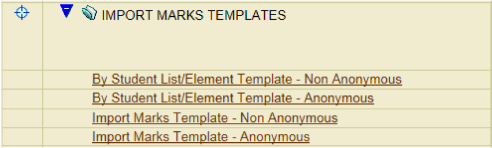
All other input fields on the login screen do not need to be modified. - Once successfully logged into the Discoverer Report section of DMIS, locate the Report Section named – IMPORT MARKS TEMPLATES:

- Click the Plus Sign in the Blue Triangle to Expand out the list of available reports.
- To generate an Import Marks Template, enter the Academic Year, Module Code and Exam Month.
- Pressing the Go button will produce a list of all students, by either Student Id or Exam Number, that are registered for the Module and Exam month.
- The list of Student Ids or Exam Numbers will relate to a specific Element Code that is setup in your Module Structure.
Example – The Template produced for HI2015 – Month 5 – is for the EX Element Code. This matches the Element Code that has been specified in the Element Structure.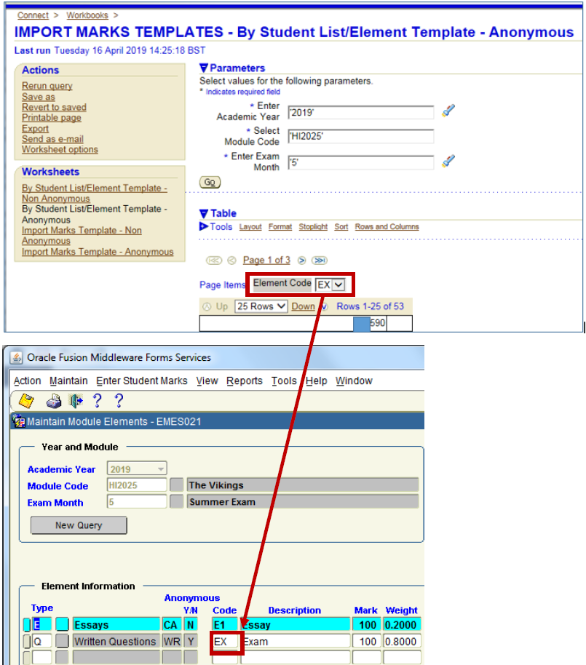
- Import Marks Templates can be exported from the Discoverer Reports application to create TXT tab delimited files, which are used in the Mark Uploading.
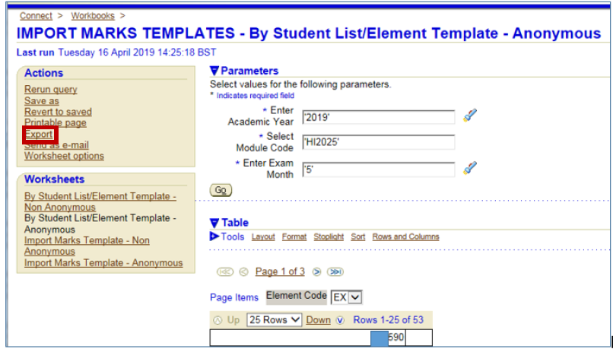
- See Entering Student Marks – By Student List & Module Element for a more detailed breakdown of the data formatting / structure of a file that is to be used to upload Marks to DMIS.
Academic Systems Administration Office
Contact us
2nd Floor, West Wing, Main Quadrangle, University College Cork (UCC), Western Road, Cork