
In This Section
- Home
- About
- Student Led
- Research Informed
- Practice Focused
- Resources
- Case Studies
- Green Labs Community
- Office of Sustainability and Climate Action
Sleep on It & Before You Print

This week we’re looking at the energy used by our computers and monitors and how to save energy when printing at work. There are so many of them in the office environment that energy savings can quickly multiply when implemented. While modern computers and screens now draw considerably less power, setting up your power saving options is easy to do and will help save energy by putting them into one of three low-power states when they’re not in use.
Have a look at this Webinar that explores energy savings in our homes and home-offices - if you work from home, even occasionally, you can pick up some very useful tips.
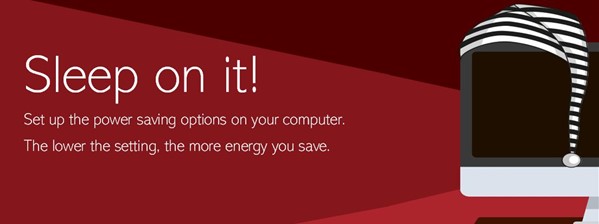
Most computers have three levels of low-power state: sleeping, hibernating, and shut down. The lower the time setting before they kick in, the more energy you save. Experiment a little to see what suits your schedule and mode of working.
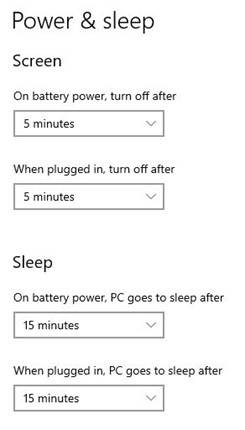
In sleep mode, your computer shuts down portions of itself but saves a snapshot of what you were doing. When you return and wobble your mouse, the computer wakes up quickly, and you're back to work in usually less than five seconds.
Hibernate mode is similar but shuts off more things so uses less power. The main difference you’d notice is the time it takes to boot back up. Sleep mode will boot your computer back up within a few seconds of moving the mouse, but it might take a few minutes to come out of hibernation.
Shutting down your laptop fully means your computer is totally powered off and uses almost no power. A regular shutdown can avoid buggy technology and allows updates to install. You’ve probably had computer issues that a simple reset fixed and making that reboot a habit can nip those problems in the bud. It resets the computer and gives it a fresh start.
Set your monitor to sleep when you have not used your computer for 5-10 minutes. Please note that screen savers don’t save energy. They keep your computer running at full power, rather than slipping into sleep mode. If your monitor’s brightness is set to 100%, you can save even more by bringing it down to a level where you can still use it without any problems.
Links to macOS User Guide and Windows Support for more information on setting up power saving options.
The paperless office is not quite here for everyone yet, however, with a few simple clicks, your mouse can transform your standard document into an energy saving one. Have a look below for some print-wise tips. Also have you ever wondered just how much that old freezer or tumble dryer is costing you to run? If so, have a look at this Blog "Make Visible" the electricity used by appliances at home.
FORMATTING
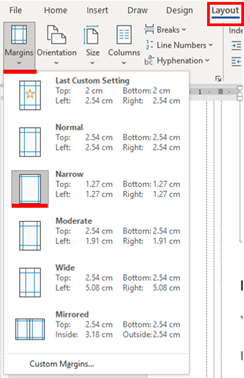
You can alter your document a little from the standard setting to make it print more efficiently.
Use narrow margins: You can adjust the document margins under the page Layout. Margins often take up unnecessary space and reducing them can save pages of printing on a large document.
Also, consider if an alternative orientation (landscape vs portrait) might be optimal for different content such as tables or graphics.
Reducing the font size for the whole document before printing will save a few pages too. Hit Ctrl+A to ‘Select All’ of the document and then reduce the font by one or two points. Consider the font size and spacing of headings too as reducing them can sometimes help.
Choosing the right font can also significantly reduce your printing costs by saving ink and toner. Among the most ‘economic’ fonts are Courier and Times New Roman.
PRINT OPTIONS
One of the most underrated and useful functions is the print preview capability. By opting for a print preview before starting your print job, you reduce the chances of waste printing by spotting errors and mistakes before it is too late, saving electricity, paper and ink.
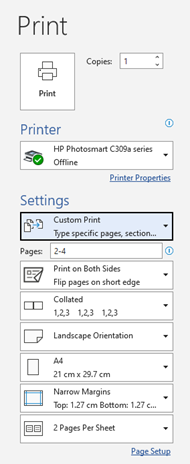
If you only need a couple of pages from a document, you can use a custom print range. Consider if you can temporarily remove unnecessary spaces, page breaks or images before printing to save paper.
Double-sided printing should be the default setting. If it is not, contact IT to have this rectified.
Landscape is often a good setting for spreadsheets and tables (although best adjusted from the Layout tab).
Printing with narrow margins can save up to a couple of pages, depending on document size. Again, best adjusted in the document itself from the Layout tab.
Print 2 Pages Per Sheet: If your eyes can handle it. This is another great paper saver and will halve your paper use.
Under Printer Properties, you will find options for printing in black and white or reducing the quality to a draft. This can help save on ink.
DON'T PRINT
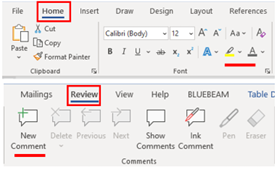
Most of us are now much better about not printing documents and emails unless they are really needed. Reading off the screen is the preferred option, especially if it’s something that you only need to read once. Zoom in to make it a more comfortable read and back out again to review the document in full. There are useful screen options for highlighting and making notes or comments electronically
INDIVIDUAL DESKTOP PRINTERS
It seems obvious, but when you’re not using your desktop printer, switch it off! If you only use it a few times every other day, you can save more than you would think by switching it off rather than having it on standby. If you can position the printer within arm’s reach it will make it easy to switch it on and off.
If you use a personal printer only occasionally or you are off on a week’s holiday then it’s best to shut it down and pull out the plug. Even if switched off, a small amount of power is consumed while the power plug is inserted into the power outlet. To cut the power consumption completely, unplug the power plug from the power outlet. Just remember to shut it down properly using the power button on the front of the machine first.
SHARED OFFICE PRINTERS
Replacing individual desktop printers with a shared office or department ‘multi-function’ printer is one of the most impactful ways to reduce paper use and make savings on printing energy, with the added benefit of being more secure. Consider if it is time to ditch the desktop printer or rationalise how many are used in your organisation.
Most shared office printers will have power saving functions. Sleep mode automatically puts the printer into a lower-power state after a set period of time of non-use. The printer returns to its normal power state when you send another print job. Auto-Off, sometimes called Power Save Mode, turns the printer completely off after a set period of time (usually two hours). You must press the power button to turn the printer back on.
If you are the last to leave the office, you can save on these two hours of energy use, by switching off the printer with the power button before you leave.
Week 3 in Deep Water / Love Every Drop...

This week we’re looking at water, hot and cold. Water is intrinsically linked to energy. Most of us underestimate the energy needed to treat and then pump water into our homes or places of work. Then there’s the energy we use to heat water for washing and showering. The litres and carbon emissions soon add up. Have a look below at the water saving tips.
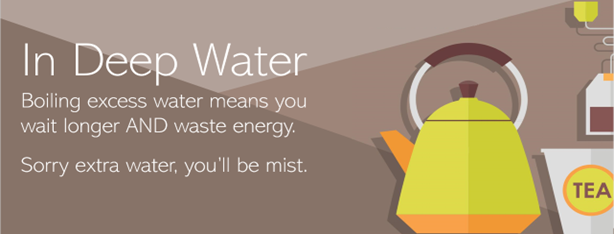
Top water and Energy saving tips.
- Fill the kettle with only the water that is needed for your cuppa. If you a feeling like being extra energy efficient, a round of tea and coffee for your colleagues will save energy and maybe score you a few brownie points too. However, boiling excess water means you wait longer and waste energy.
- If there are now fewer people in the office most days, does it still make sense to have that large boiler on all day for just a few cups of tea and coffee? Consider the alternatives, such as a kettle or hot cup appliance that boils just enough for one brew.
- Use a dishwasher instead of washing up plates and mugs separately – and please make sure it is full before switching it on. If washing by hand, run a bowl of water rather than letting it run down the plug to be wasted.
- Turn taps off fully after use to save water and energy. Report any drips or leaks.
- Use cold water if you don’t need hot
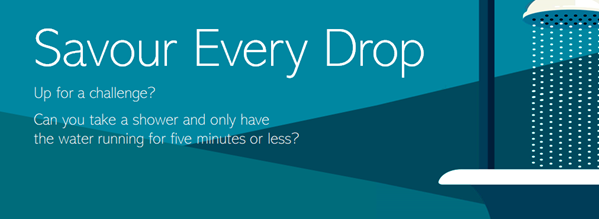
How long do you spend in the shower?
The average shower time is 8 minutes. Most modern showers use between 10 and 12 litres per minute. That can make an eight-minute shower a 96-litre experience. Cutting the time to five minutes is one of the best ways to help save water and energy. Our top tip is to turn the water off when shampooing and back on to rinse. Shorter, cooler showers are generally better for your skin and hair.
If you are spending 10 minutes or more in a hot shower you could be adversely affecting your skin and hair, as well as wasting water and energy. The purpose of showering is to hydrate and cleanse the skin, but warm or hot showering for prolonged periods strips away natural oils from the skin and opens up our pores and allows moisture to escape. By using only the water we need, we can play our part in safeguarding our water for our future.
Week 2 Reduce Your Use: It’s a Cover-Up / Pull the Plug

This week's Reduce Your Use theme is the radiators in our workspaces and what we can do to make them work at their best. Have a look below at the Energy Exercises of the Week on keeping radiators clear and the use of supplementary electric heaters. This Webinar explores further the topic of Radiators - Uncovering their Potential, the different types and what works best where. Finally, have a look at the Heating System Health Checks Blog from the Office of Public Works (OPW) on the Top 4 checks you can make in your home.
Energy Actions of the Week

People have long practiced the art of Feng Shui, arranging their furniture in a way that brings harmony into their homes. However, we’re suggesting moving the furniture away from radiators as it could be a simple action that will make your office (or your home) more comfortable this winter. Radiators need a clear space around them to let air circulate. Air has to be able to freely access the bottom where it is warmed up over the surface of the radiators and then the hot air flows out the top. If there is furniture up tight to a radiator then the air can’t flow and the heat from the radiator will not circulate around your room. The furniture will be absorbing heat that could be warming your office.

We know space is limited in offices but take a look around, where are your radiators? Can you make a simple change to improve air circulation by asking to have your desk pulled back a few inches or getting that filing cabinet moved? It’s the same story with curtains. Curtains should be long enough to cover your window, but not long enough that they hang over your radiators. Unlike Feng Shui, this measure may not help you attain inner peace, but moving furniture away from your radiators, just a little, can make a big difference to room temperatures and the efficiency of the heating system.

While supplementary electric radiators have their place, they are definitely the heating device of last resort in the workplace. Only PAT-tested (Portable Appliance Testing) and safety-approved models, supplied by your facilities team, should ever be used.
Portable heaters should never be left unattended or placed near combustibles. They should always be plugged directly into a wall outlet and NEVER used with an extension lead. Portable electric radiators usually have rated outputs of 2 or 3kW - that's how many units of electricity they'd get through in an hour on full blast. For reference, that's about the same amount of energy taken to boil a kettle constantly. This makes them a very expensive and environmentally damaging heat source.
Week 1
Dear Colleagues,
This week the Reduce Your Use campaign looks specifically at heating controls. Surveys indicate that more than half of us don’t fully understand how best to use the heating controls at work. We want to help you with that.
Have a look below at the Energy Exercise of the Week ‘Find the Sweet Spot’ where we look specifically at Thermostatic Radiator Valves. These heating controls are common in our places of work and also in our homes.
This Webinar explores further the topic of how to get the most from our heating controls. Finally, have a look at this blog from the Office of Public Works (OPW) which shows you how to become a master of controls and save energy this winter!
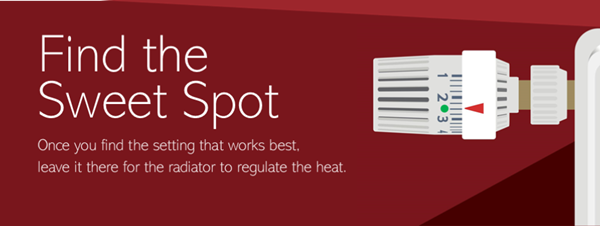
Lots of our office and home radiators have Thermostatic Radiator Valves (TRVs) to help us maintain the desired space temperature – not too hot and not too cold. The key is finding a setting, the ‘Sweet Spot’, and leaving it there for the radiator to maintain the temperature.
Here's how to do it.
- Start by setting the Thermostatic Radiator Valve between 2 and 3
- If the room is below the desired temperature turn it up half a setting
- If the room is above the desired temperature turn it down half a setting
- Wait at least 1 hour for the room to adjust
Once you find the ‘Sweet Spot’ place a green dot on it.
Thermostatic radiator valves shut off the flow of heat to the radiator when the room gets to the desired temperature. There is a temperature sensor that closes a valve to reduce the flow of hot water in the radiator. When the room cools down, the valve opens and allows heat to flow again. In this way, it maintains the room at the desired temperature.
The numbers, usually 1 to 5, on your thermostatic radiator valve do not correspond to a precise temperature but rather to a level of comfort. You can use the table below as a guide to help you determine which setting might work best for you. Through trial and error, you will find the setting that meets your needs.

Once you have found the setting that works best - the ‘Sweet Spot’ - place a small green dot on the thermostatic radiator valve. This will make it easier for you to check it is set at the ‘Sweet Spot’.
Turning the thermostatic radiator valve up higher or to MAX will not heat your area faster. Resist the temptation to turn it up and down. It's best to find the ‘Sweet Spot’ and leave it there for the radiator to regulate the heat. The OPW also have a control checklist document with top tips for maximising savings using your heating controls. It can be viewed here
Green Campus
Contact us
University College Cork, College Road, Cork T12 YN60,
- greencampus@ucc.ie
- Dr Maria Kirrane, Sustainability Officer - m.kirrane@ucc.ie